


In this article, you’ll learn:
Video shouldn’t turn into a black box the second you need one exact moment.
Because that’s the real pain: "We can’t find that quote, that slide, that scene” without scrubbing timelines, rewatching chunks, and guessing where it was.
This guide will help you find the solution by typing what you remember and jumping to the exact second it happens.
Just search, jump straight to the moment, and use it.
Why Video Libraries Become Unsearchable Over Time
One webinar becomes ten. One product demo becomes a weekly series. Sales calls pile up. Training recordings multiply every time onboarding changes. Marketing adds campaign shoots, customer stories, partner interviews, and internal updates. Suddenly your “Videos” folder becomes an archive—and video library management turns into a constant fight.
Over time, the same thing happens: your content becomes harder and harder to find — and searching the archive starts to feel impossible.
The issue is the format. You can’t skim video like a doc. So over time your library turns into a guessing game:
- You know the clip exists. You just don’t know where.
- You remember the phrase… but not the timestamp.
- You can picture the slide or the scene—but you can’t prove which recording it’s in.
And file names don’t help. Nobody maintains perfect naming forever, so you end up with: noname_nov.mov, webinar_new_edit.mp4, Zoom Recording 2025-12-14 (1).mp4
The problem gets worse as you add more long-form video content: your marketing video archive, product demo recordings, webinar recordings, etc.
So when you need one specific thing (a quote for a landing page, a clip for paid social, the moment a customer explains why they churned), you’re back to the default workflow: open → scrub → guess → give up → ask in Slack.
That’s how video libraries become unsearchable: not overnight, but one “I’ll name it later” at a time.
The Real Cost of “Just Skim Through It”
“Just skim through it” sounds simple… until you actually try.
- Open the file.
- Scrub the timeline.
- Try to catch the right moment by ear.
- Miss it. Rewind.
- Speed up.
- Miss it again.
- Start doubting you’re even in the right video.
And the worst part is confidence. After 10–15 minutes, you may no longer be sure if the quote was in this video, in another recording, or phrased differently.
Here’s the scale: if finding one moment takes 20–30 minutes, it doesn’t feel dramatic—until it repeats across a team.
Those hours don’t go into better content or better campaigns. They go into retrieving something you already have.
Why Traditional Search Doesn’t Work for Video
Traditional search works when the content is text. The video is a timeline. If your search relies on file names and a few tags, you’re searching labels, not what’s actually inside. That’s why trying a keyword rarely works—the keyword isn’t in the file name.
File names don’t reflect content
File names usually describe when a video was recorded, not what happens inside it. However, later on, you may not be searching for “the January webinar.” You’re looking for “the moment they explained pricing” or “the slide with the workflow.”
Manual tags are inconsistent
Manual tags only work when everyone follows the same rules—consistently—forever. In real teams:
- Some people tag; some don’t.
- Everyone uses slightly different wording.
- When deadlines hit, tagging is the first thing to drop.
The result: you can’t reliably search video by transcript or find needed information.
From Video Files to Searchable Knowledge Assets
That’s where video intelligence comes in. With video indexing software your library stops acting like storage and starts acting like a knowledge base.
Automatic video summary
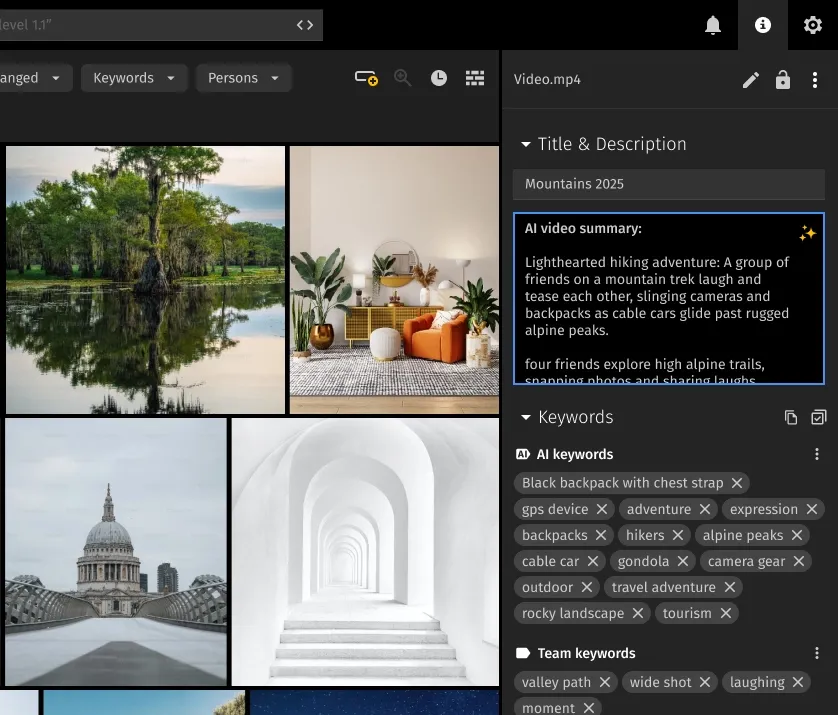
A good summary gives you the point of the video without watching it. With an automatic video summary, you can quickly decide whether a recording contains what you need—especially helpful for managers and stakeholders who need context fast, not a full replay.
Smart keyword extraction
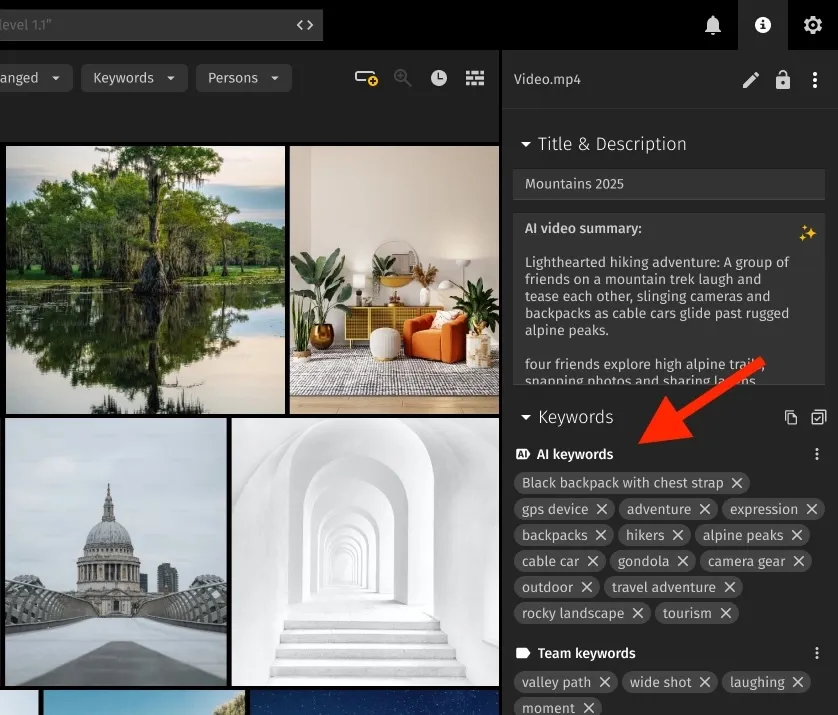
The system pulls entities from the content itself—people, products, topics, brands, and key terms—based on what’s said and what appears on screen. In practice, it replaces messy manual tagging with more consistent automated video tagging.
Full transcript with timestamps
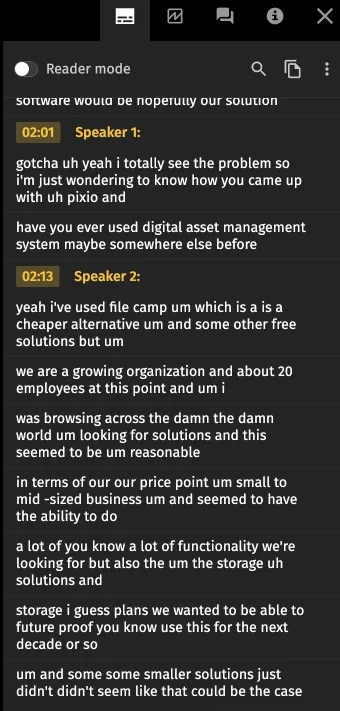
A transcript makes video searchable. Timestamps make it usable.
With video transcription, you can run a search, click a result, and jump at the exact second the phrase was said. That’s the difference between “I think it was somewhere…” and "Here it is—right here.”
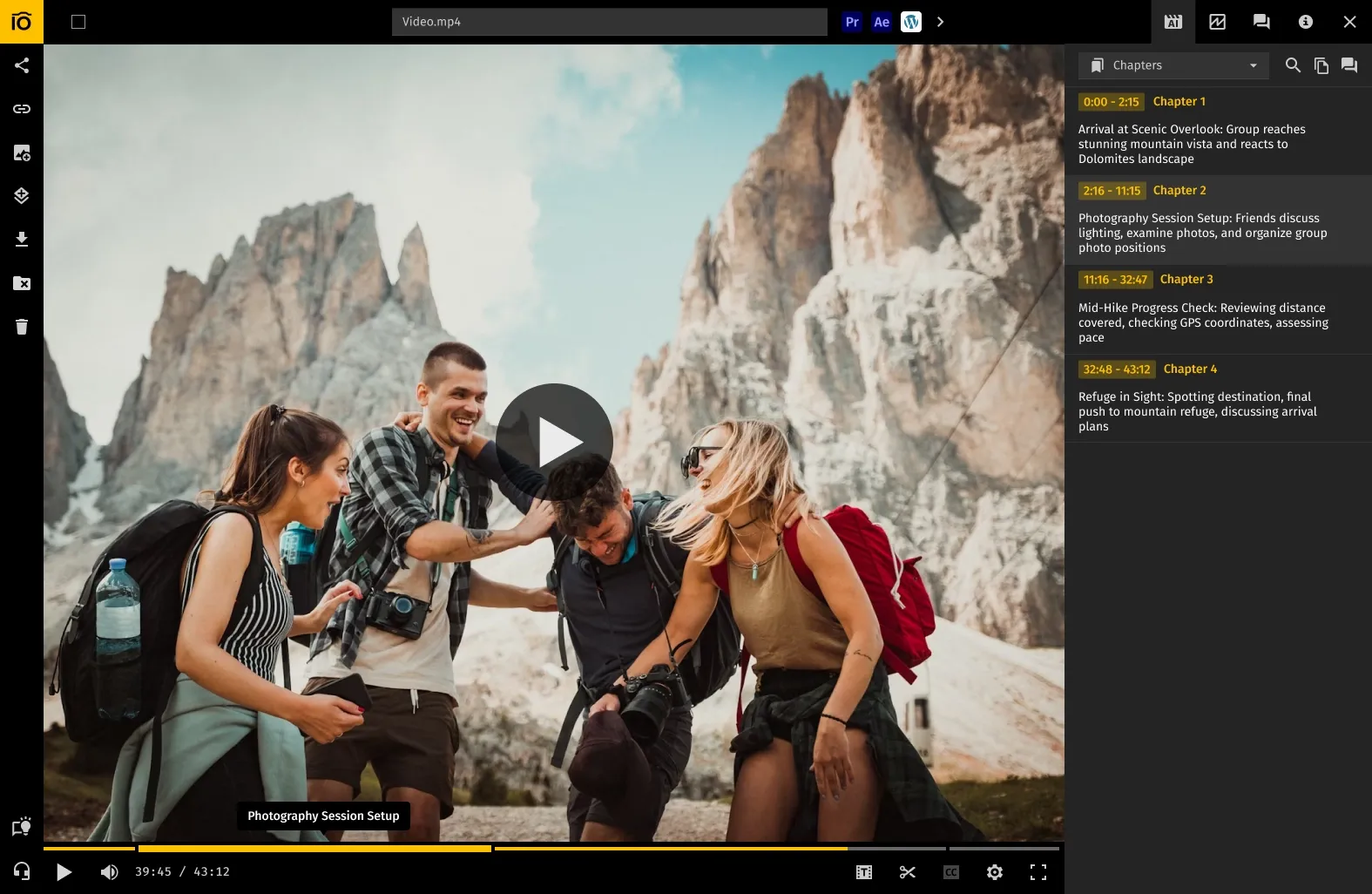
Chapters
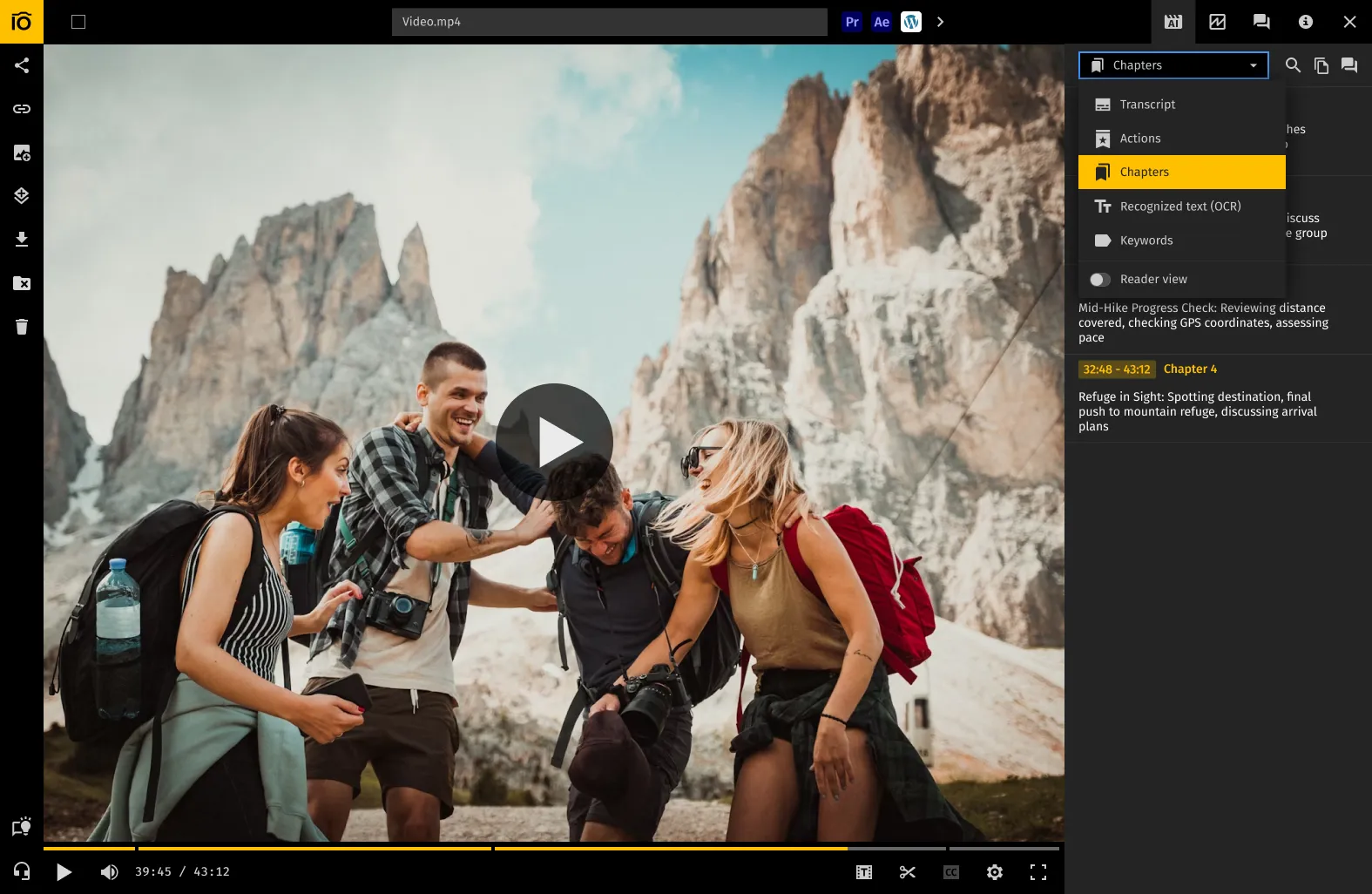
With AI chapter generation, a long recording becomes a set of sections you can navigate like a table of contents. Instead of guessing where something starts, you can go directly to the part you need: intro, demo, Q&A, objections, next steps.
Recognized on-screen text (OCR)
A lot of key info is visual: slide titles, UI labels, product names, dashboards, and captions. OCR helps detect text in video so you can search for what was shown—not just what was said.
Entity and object recognition
Beyond text, AI can recognize recurring entities and visual elements. When the system recognizes recurring visuals, you can treat each appearance as a shortcut back into the video. It becomes even easier to jump to the right segments without scanning.
Timeline Becomes a Navigation Tool
When the timeline reflects the video’s structure and mentions, navigation becomes instant. Instead of scrubbing, you use video timestamp search and jump to video entry points at the exact moments you need.
Chapter segments on the timeline
Chapters divide the timeline into distinct sections. Hover shows what a segment covers. Click jumps to that section. It’s the fastest way to move through a 45–90 minute recording without blind scrubbing.
Entity highlighting
Entity highlighting shows where a topic/brand/product appears across the timeline—not just that it appears.
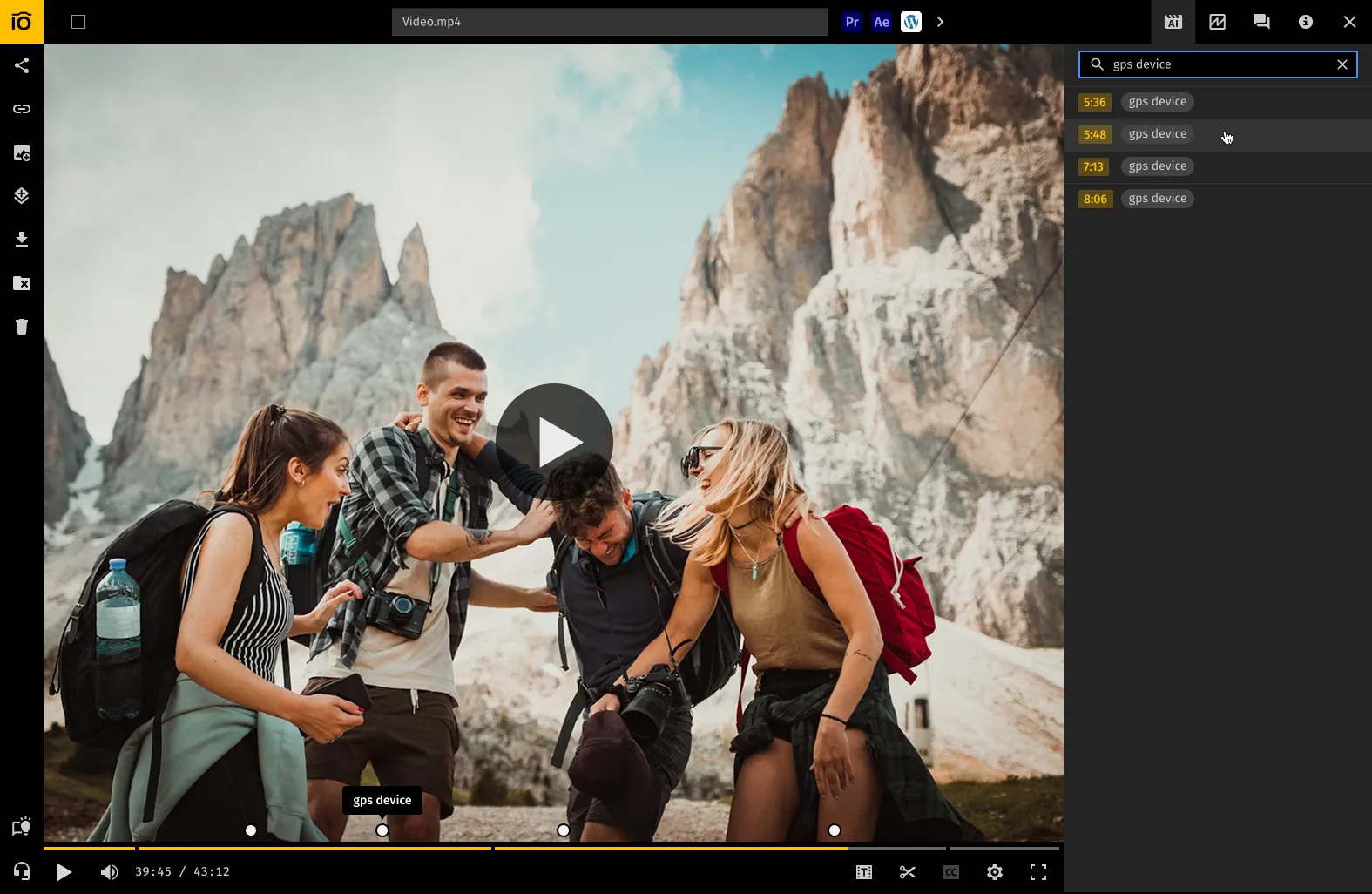
Example: You need every mention of “Feature X” from a 60-minute webinar to make a short sales clip. Instead of watching the whole thing, you search “Feature X,” see it clusters in two sections, jump to those timestamps, grab the best 20 seconds, and you’re done—which directly helps improve content reuse and eliminate duplicate production.
Common Scenarios Teams Run Into
Different teams use video differently, but the pain is the same: you need a specific moment quickly. That’s how teams stop asking “Where was that clip?” and start reusing what they already have.
Marketing teams
Find product mentions, pull moments for clips, and reuse content across campaigns without rewatching full recordings.
Agencies
Verify brand mentions and logo appearances, catch outdated messaging, and compile proof/recaps with exact timestamps.
Sales and enablement
Capture best-performing demo moments, build a “what works” library, and reuse real clips in onboarding and decks.
Training and education
Navigate to the appropriate module, locate the specific explanation, and ensure that lengthy trainings remain accessible rather than becoming difficult to navigate.
Signs Your Team Has Outgrown Manual Video Search
You’ll feel it when video becomes shared infrastructure and you need to manage video content at scale: your library is 100+ videos, you reuse moments regularly, multiple people pull from the archive, and you’re working with long-form recordings.
At that point, the bottleneck is retrieval.
You’ll recognize the shift if:
- You manage 100+ videos (and the number keeps growing). At that volume, relying on memory stops working—even if the folder structure is decent.
- You reuse content regularly. Webinars become clips. Demos become training snippets. Customer interviews become quotes. If reuse is part of your process, you need rapid retrieval, not rewatching.
- Multiple people access the same library. When marketing, sales, customer support, and product teams all pull from the same recordings, “ask the person who remembers” becomes the default… until that person is offline.
- You work with long-form content like webinars, demos, and interviews. Long videos are valuable, but only if people can jump to the right section.
- You often need specific moments. The real request is usually something other than “send me the webinar.” It's "please provide the 20 seconds where they explain X" or "the moment they inquired about pricing."
If those scenarios feel familiar to you, then your issue is likely related to discoverability.
This Tool is Designed for Teams That Manage Their Own Storage
Many “AI video” tools assume you’ll upload everything into their platform. That’s not how most teams want to run video content management.
Pics.io is designed to add intelligence on top of where your files already live:
- Works over your existing storage—Google Drive, Amazon S3, or your own storage setup.
- No migration required. You don’t have to move terabytes of video or rebuild folder structures just to search.
- No vendor lock-in. Your originals stay in your storage. You keep ownership and control of the archive.
- Adds an intelligence layer over your library. Search, transcripts, chapters, OCR, and recognized entities—without turning your storage into a new walled garden.
In practice, the solution works as video asset management: you keep the permissions and structure you trust and add searchability on top—including what many teams look for in enterprise video search.
Final Words
When video is searchable, your team spends less time hunting and more time shipping: better clips, faster enablement, smoother training, and fewer "Does anyone remember where…?” messages. You create structured video data your whole team can use.
If your library is growing and multiple people rely on it, the best upgrade is turning video into knowledge your whole team can access on demand.
FAQ
How do I search inside a video file?
You can’t truly “search inside” a video with file names alone. You need a layer that converts video into searchable data — usually a transcript (speech-to-text), recognized on-screen text (OCR), and extracted entities (topics, products, people). Then you can type a phrase or keyword and get results tied to exact timestamps.
How can I find a specific moment in a video?
The fastest way is timestamped search. You search for the phrase/topic you remember, see matching moments, and jump directly to the right second. This beats scrubbing the timeline because you’re navigating by “what’s happening,” not guessing where it might be.
Can I search video content using keywords?
Yes, if keywords come from the content itself. AI can automatically extract keywords and entities from what's said and shown (e.g., product names, topics, brands, and speakers). That means you’re searching for real content signals, not inconsistent manual tags.
How do I organize a large video library so content stays available?
Folder structure helps, but it won’t scale on its own. The reliable setup is to keep storage organized (projects/teams/years), add consistent permissions, and rely on AI indexing (transcripts, chapters, OCR, and entities) to make the inside of each video searchable. That way the library stays usable even when you hit hundreds of recordings and multiple people contribute.
How to search inside a Zoom recording?
Most Zoom recordings are named by date, which is useless once you have a few dozen. To search inside them, you need a transcript with timestamps (plus OCR if it’s a screen share with slides). Then you can search for a topic like “pricing,” “security,” or “timeline,” see matching moments, and jump straight to the exact timestamp instead of scrubbing the full hour.
Did you enjoy this article? Give Pics.io a try — or book a demo with us, and we'll be happy to answer any of your questions.