

In this article, you’ll learn:
Last updated 19/12/2025
Before you upload a photo to your website, send it to a client, or drop it into a shared folder, it’s worth checking what’s attached to the file. Photo metadata can include GPS location, device details, timestamps, and even editing info.
In this guide, you’ll learn the quickest ways to remove photo metadata on Windows, macOS, iPhone, and Android — plus how to double-check that the sensitive fields are actually gone.
Quick answer: remove photo metadata safely
If you just need the shortest path:
- Only need to hide where it was taken? Remove location (GPS) using your phone’s sharing options.
- Need a “clean file” for clients or public use? Export a clean copy, or use a dedicated remover to strip Exif metadata/IPTC/XMP.
- Don’t skip verification. Open the cleaned file in a metadata viewer and confirm the GPS / Author / Software fields are empty.
Pick your device below to choose the quickest option — from “remove location only” to “remove everything”.
| Device / OS | Best for | Removes | Notes |
|---|---|---|---|
| iPhone / iPad | Quick sharing | Usually location (GPS) | Great when you only need to hide where the photo was taken |
| Android | Quick sharing | Often location (GPS) | Depends on the device and gallery app |
| macOS | Quick cleanup via built-in tools | Mostly location (built-in) | For full cleanup, you’ll usually need a dedicated tool |
| Windows | Basic cleanup | Many Exif fields | Some fields may remain — always verify |
| Dedicated remover | Batch + full cleanup | Exif + IPTC + XMP | Best for business workflows and bulk libraries |
What Is Exif Metadata and Why Is It Important?
Exif (Exchangeable Image File Format) is a metadata standard introduced in 1995. The practical part: your phone or camera writes Exif automatically when you take a photo — you don’t need to enable anything. Keep in mind that metadata behavior can vary across image formats (for example, JPG/JPEG, PNG, and RAW formats).
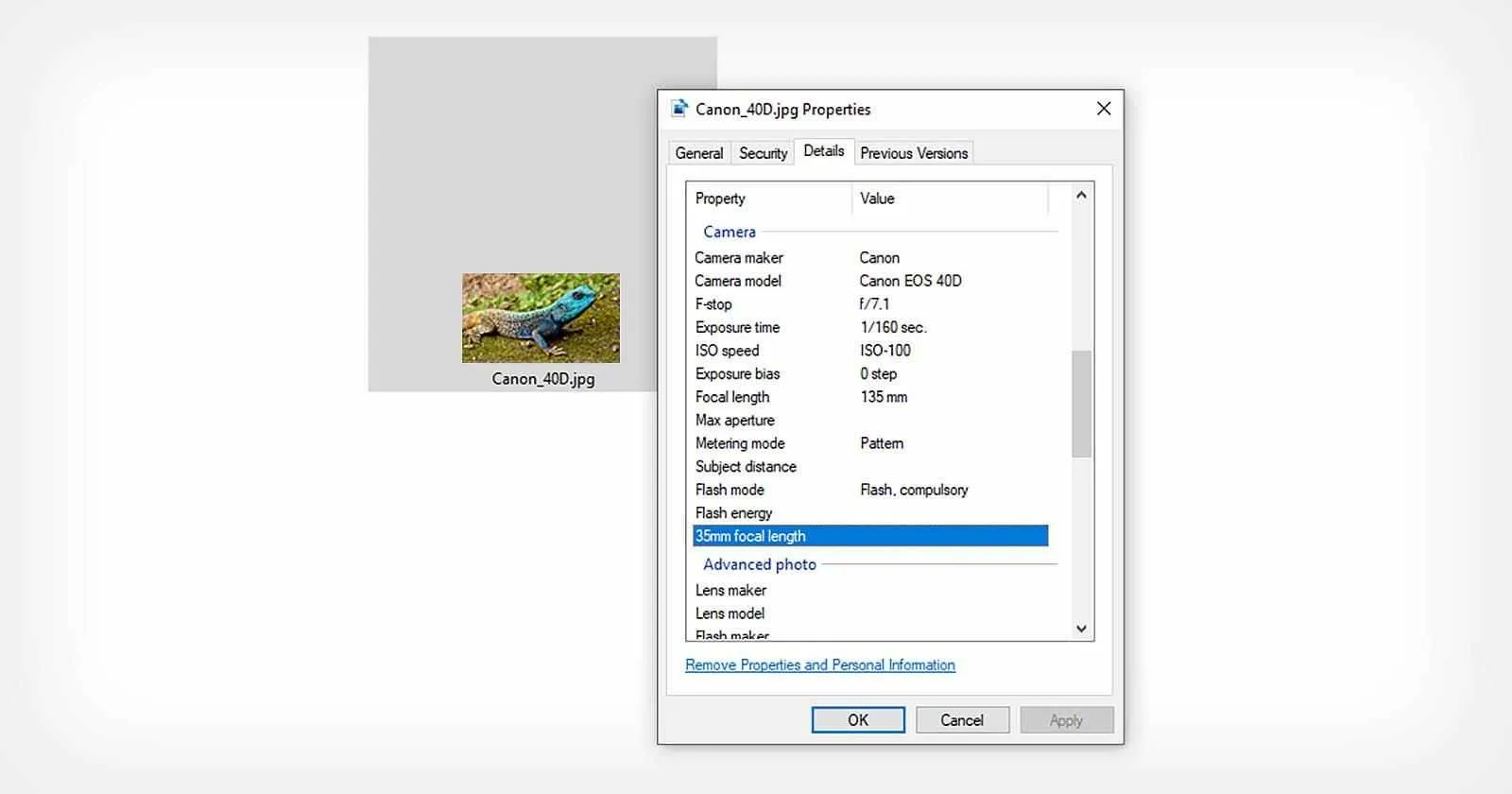
Exif metadata is useful because it helps apps organize and display images correctly. Common fields include:
- device brand and model
- date and time the photo was taken
- GPS location (if enabled)
- image details (resolution, orientation, color profile)
- camera settings (exposure, ISO, focal length, etc.)
A quick note on Exif 3.0
The current Exif 3.0 specification (released in May 2023) expands the set of supported fields and improves consistency across devices. For most people, the key takeaway is simple: modern images can carry more metadata than you expect — not just camera settings, but also extra technical and sensor-related details.
Why removing metadata matters (in real life)
Exif is helpful — but it can also expose information you didn’t mean to share, especially when images leave your organization. For example:
- Location exposure: GPS data can reveal where a photo was taken (home, office, warehouse, event venue).
- Unwanted attribution: author/creator fields can disclose personal or team details.
- Workflow leakage: software/editing fields can hint at internal tools and processes.
- Client/partner delivery: many teams prefer sending “clean copies” of assets by default to avoid accidental disclosure.
If you share photos publicly, upload them to cloud storage, or send them to clients and partners, it’s worth knowing what metadata is there — and removing it when needed.
When people say “Exif data,” they often mean all metadata — but there are three common types:
- Exif: camera and capture data (date/time, device model, settings, GPS).
- IPTC: publishing info (copyright, creator, captions, keywords, usage details).
- XMP: editing/workflow info (software used, edit history, ratings; often added by Adobe tools).
If your goal is privacy, removing GPS might be enough. If your goal is client-safe delivery, you usually want to remove Exif + IPTC + XMP and share a clean copy.
How to Remove Metadata from Photos?
Fortunately, it's relatively easy to do. Besides, when it comes to single images, you don't need to use specialized tools. Let's figure out how to remove metadata from photos on different devices with different operating systems.
How to Remove Image Metadata on Windows?
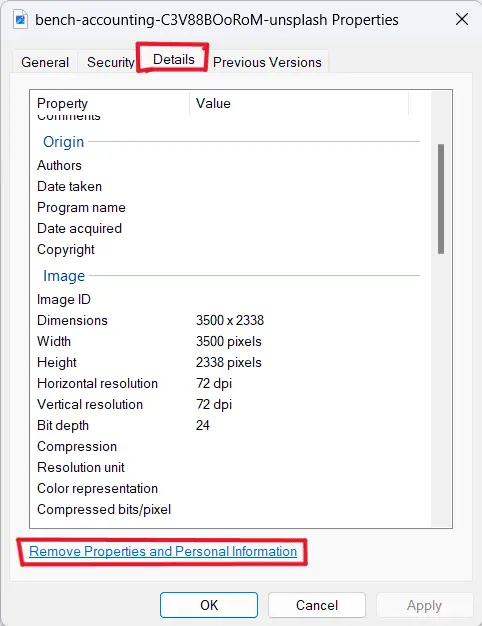
- Find the file you need.
- Hover the cursor over its icon and right-click.
- Select Properties from the drop-down menu.
- In the window that opens, select the Details tab.
- At the bottom, you'll see the Remove Properties and Personal Information link.
- In the new window that opens, select Remove the following properties from this file.
- Click Select All, then click OK.
- When you return to the previous window, click OK again.
Note that you can also remove data from a photo by keeping the original and creating a new copy without personal information. To do this, select the option "Create a copy with all possible properties removed" in the sixth step.
Windows may not remove everything
Windows can remove many common Exif data fields, but some metadata may remain depending on the file format, how it was created, and what apps wrote data into it (especially IPTC/XMP fields).
Best practice: Use Windows to create a clean copy, then verify in a metadata viewer. If you need a guaranteed “everything removed” result (for clients/press kits), use a dedicated metadata remover.
How to Remove Image Metadata on Mac?
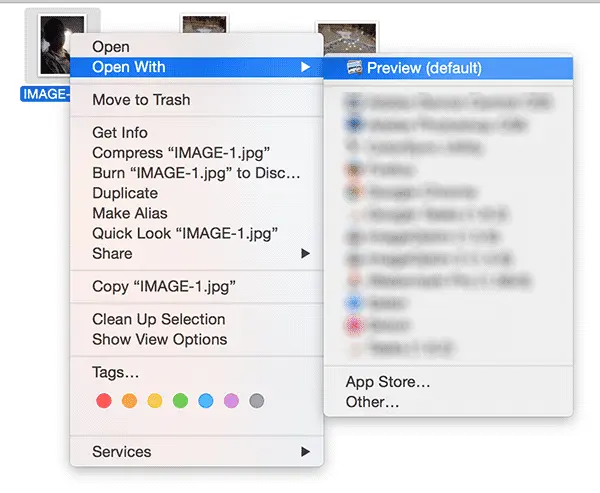
- Find the image in the file system.
- Open the file using the standard Preview app.
- In the top menu, select Tools → Show Inspector.
- In the window that opens, go to the Information tab marked with the i icon.
- Find the GPS tab and click Remove Location Info.
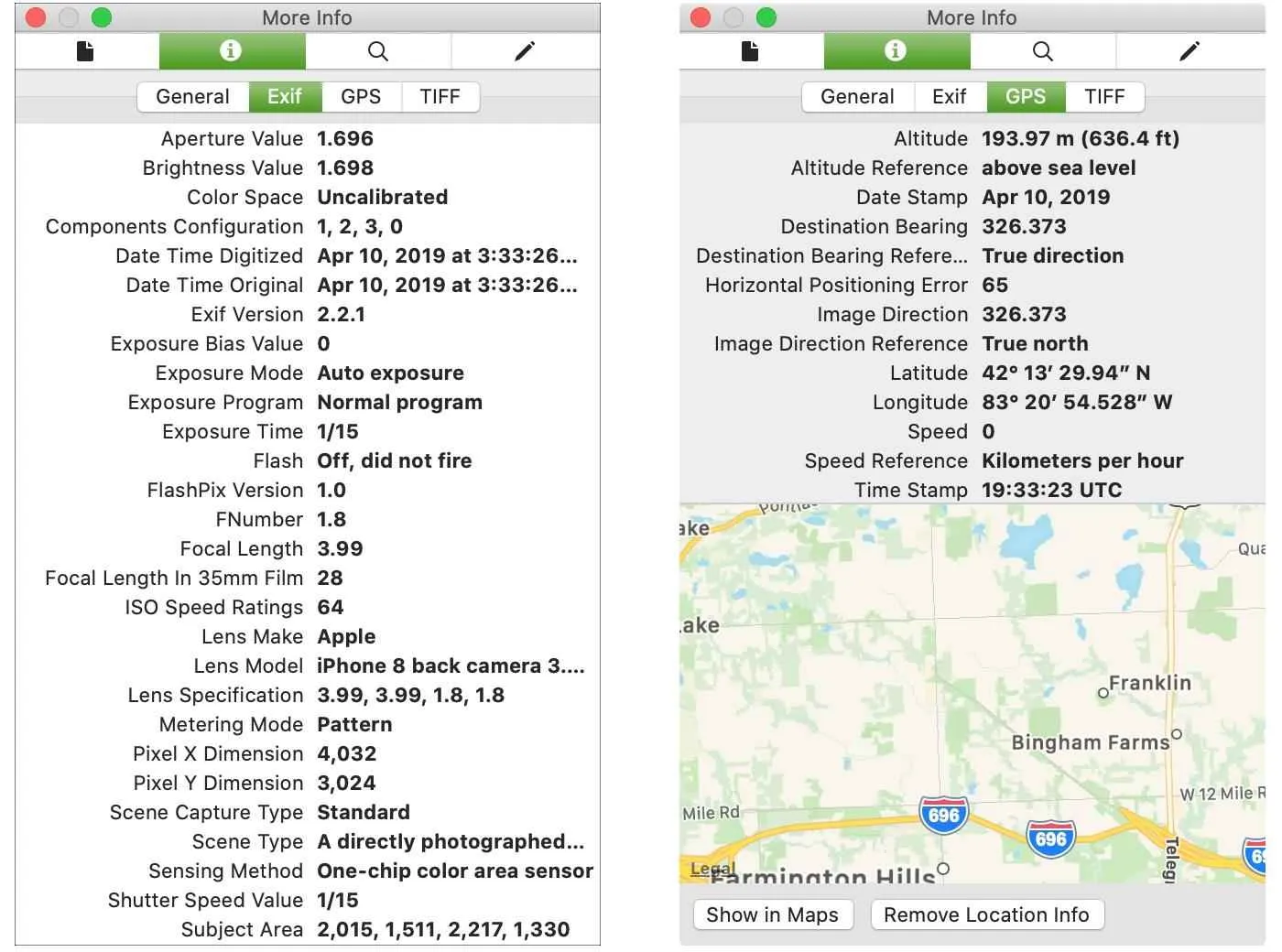
In macOS, the built-in option focuses on removing geolocation. If you need to remove metadata more broadly (including IPTC/XMP), you’ll typically need a dedicated tool.
How to Remove Image Metadata on iOS?
- Open the standard Photos app.
- Select the image you want to share.
- Tap Share.
- Press Options.
- Turn off Include Location.
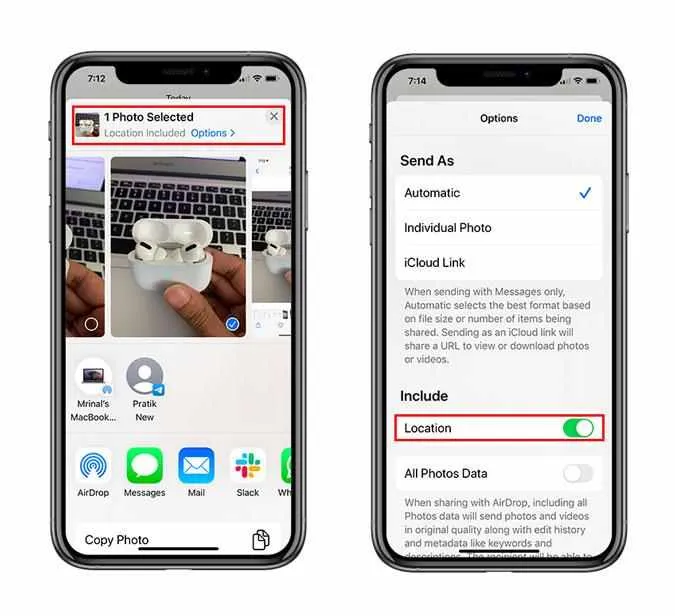
iOS also has limitations: if you need a full metadata cleanup (not just location), you’ll usually need a dedicated app/tool. If you only care about geolocation privacy, disabling location access for the Camera app can also help.
How to Remove Image Metadata on Android?
- Open the default Gallery app.
- Select the image.
- Tap the Share button.
- Click the Options button at the top.
- Select Remove location (and Remove other properties, if available).
- Click Done.
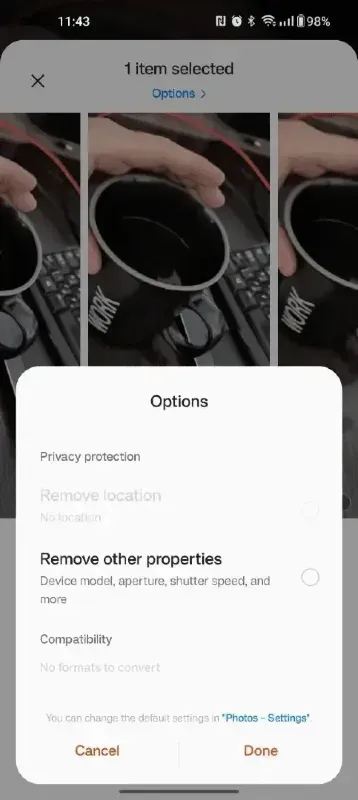
Note: Android steps vary by brand and gallery app. Built-in options may not remove all metadata in every case, so always verify if you need a “clean for clients” result.
How to verify metadata is gone (quick checklist)
Don’t guess — confirm:
- Open the original file in a metadata viewer and note what’s there:
- GPS/ Location
- Author/ Creator/ Copyright
- Software/ Editor
- Remove metadata using your chosen method.
- Open the cleaned file in the viewer again and confirm that those fields are empty or removed.
- If you still see sensitive fields, export a new copy or use a full remover (Exif data + IPTC + XMP), then re-check.
Tip: always test with one file first, then batch-process the rest.
How to Take Photos Without Location Data?
Everyone knows that it's better to prevent a problem than to deal with its consequences. If you are worried about cybersecurity, act now! Start by turning off the geolocation option in your smartphone's camera settings.
How to Take Photos with No Location Data in iOS?
- Open the main menu of the operating system.
- Go to Settings → Privacy → Location Services.
- Find the default Camera app and click on its icon.
- In Allow location access, select Never.
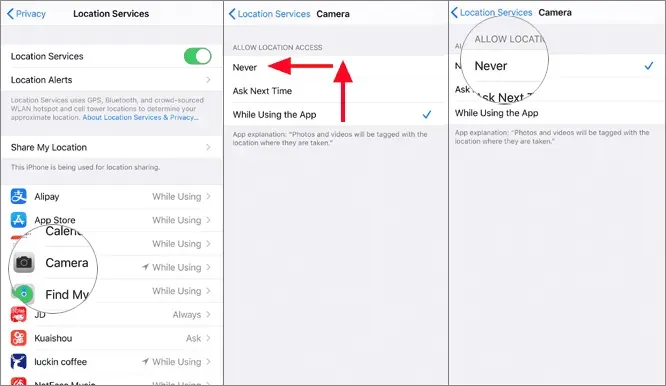
This way, you can remove the location from multiple images that will be taken with your iPhone or iPad camera after this point. Please note that previous photos that are already stored in the device's memory may still contain full information! When working with them, do not forget to remove the geolocation from the Exif data.
How to Take Photos with No Location Data in Android?
- Open the main menu of the operating system.
- Go to Settings and Apps.
- Find the default Camera app and click on its icon.
- Go to the Permissions section.
- Turn off the Location permission — the slider should move to the left and turn gray.
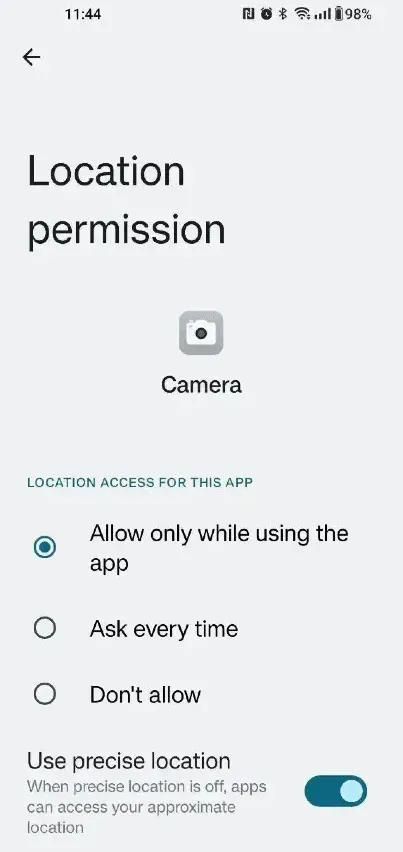
Of course, this will prevent the program from recording only your location at the time of taking the photo. All other data will be recorded in the file. Above, we described how to delete them partially. Now, it's time to consider a more convenient, reliable, and secure way to clean up your information.
Helpful Tools
Windows can remove many common fields without extra tools, but for a more reliable full cleanup (including IPTC/XMP), you’ll usually need a dedicated remover — especially for bulk work. If you deal with hundreds or even thousands of photos in your work, editing files one by one can be a huge waste of time. To avoid this, use specialized applications:
- Pics.io is a web service for managing digital assets. It lets you clean up or edit metadata in bulk across many file types. You can also add licensing and copyright info to keep assets compliant and easier to reuse. The service offers flexible pricing and a 7-day trial period.
- MetadataFinder.com is a browser-based tool for viewing and removing metadata from images.
- Exif Pilot is a Windows/macOS app for bulk metadata editing. It supports templates and export workflows, but the interface may feel less beginner-friendly.
How to Edit EXIF Metadata?
The simplest answer is to use one of the tools described above. All of them can not only delete information but also change it, including automatically adding template strings. But if you only need to edit a few photos, you don't need to buy software or subscribe to a service. You can edit image metadata in Windows by following these simple instructions:
- Find the file.
- Right-click on its icon.
- Select Properties.
- Click the Details tab.
- Select the row you want, move the cursor to the Value column, and click.
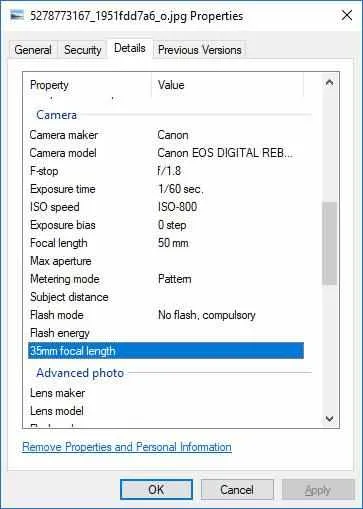
If you see a field to fill in or a drop-down list, you can edit this information yourself. Please note that you cannot change service data, such as resolution and some camera settings.
Does Uploading to Social Media Remove Metadata?
Often, platforms hide metadata from other viewers — but that doesn’t always mean the metadata is fully removed from the file or from the platform’s internal processing.
If you care about privacy or client compliance, the safest rule is simple:
- Clean the file before you upload or share it.
- Especially when sharing via cloud storage links, messengers, email attachments, or partner portals.
FAQ
Does removing metadata reduce image quality?
No. Metadata is extra information attached to the file. Removing it shouldn’t change pixels.
Will “Remove location” delete everything?
Usually, it only removes GPS coordinates. Author, software, or editing info may remain.
What’s the safest option: edit the original or create a copy?
For business workflows, create a clean copy and keep the original intact.
Can I remove metadata from multiple photos at once?
Yes — batch removal is best handled with dedicated tools or scripted workflows.
How do I remove metadata without accidentally breaking my workflow tags?
Decide what you want to keep (e.g., internal IPTC keywords) and remove only sensitive fields for public delivery.
What’s the fastest way to confirm GPS is gone?
Open the cleaned file in a metadata viewer and check the Location/GPS fields.
Conclusion
Image metadata is useful for organizing and editing files — but it can also expose sensitive details when photos are shared outside your team. Windows offers the most built-in control for editing many metadata fields, while macOS and iOS mainly focus on removing location data. Android can offer more options, but it depends on the device and the gallery app.
Default OS tools also tend to work on one file at a time. If you manage large libraries, it’s usually more efficient to use a dedicated tool for bulk cleanup and consistent “clean copy” delivery.
Pics.io lets you remove sensitive data from images in bulk, add licensing information, and standardize metadata with controlled vocabulary. It also integrates with tools many teams already use, including Adobe Photoshop, Google Workspace, Zapier, Slack, and more.
Did you enjoy this article? Give Pics.io a try — or book a demo with us, and we'll be happy to answer any of your questions.
Author

Vladimir Mikheev is a DAM consultant and contributor to the Pics.io blog. Since 2019, he has guided 400+ organizations through DAM rollouts and workflow improvements, delivered 900+ demos, and helped align sales, marketing, and product teams.


