

In this article, you’ll learn:
If your “photo library” lives across a phone camera roll, a couple of external drives, three cloud folders, and someone’s desktop… you don’t really have a library. You have a moving pile.
That’s how teams end up with duplicates, missing originals, and “final-final-v3” confusion—and once you hit thousands of photos, folders start feeling like guesswork.
So, what works today for managing and organizing photo assets across teams?
Why Most Photo Organization Systems Fail
Most “photo organization tips” are written for personal collections: one person, one device, one set of habits. In a team, that advice breaks fast. The moment photos turn into shared work assets—used in campaigns, product pages, decks, PR, and socials—your library stops being “storage” and becomes part of your workflow. And that’s exactly why the usual systems fail.
The folder-only approach doesn’t scale
The problem is that folders force you to choose one path for a file: by date, by client, by product, by campaign, by region, by channel. In real work, the same photo belongs to several of those at once. So teams either duplicate files across folders (hello, inconsistent versions) or spend time debating where something “should” live (hello, confusion and delays).
Manual tagging turns into unpaid labor
Tagging sounds simple when you have 300 photos. At 30,000, it turns into a job. People start strong, then get busy, then skip it “just this once”… and suddenly your search results are unreliable. The library becomes a place where only the person who uploaded the file can find it—because the system depends on perfect human discipline.
Team collaboration creates version chaos
As teams grow, photos don’t stay “one and done.” They get cropped for ads, retouched for the site, localized for regions, and updated after approvals. If versions and status aren’t clear (draft / approved/outdated), the team falls into the same trap: “Which one is the right one?” Marketing grabs the old logo, e-commerce uploads the wrong pack shot, and partners end up sharing assets that were never approved for external use.
No metadata strategy means the search becomes random
A lot of systems either skip metadata completely or treat it like a nice-to-have. But metadata is what makes a library usable at scale: ownership, rights, status, and context. Without a strategy (what fields matter, who fills them, and how), search becomes guesswork.
Professional Asset Management for Teams
- Professional asset management is about reuse and speed: you need the right file, the right version, with the right rights, right now. Mistakes cost money, brand consistency, and time.
That’s why growing teams often end up moving from “shared storage” to digital asset management for photos—so versions, rights, approvals, and search are handled as a system, not as habits.
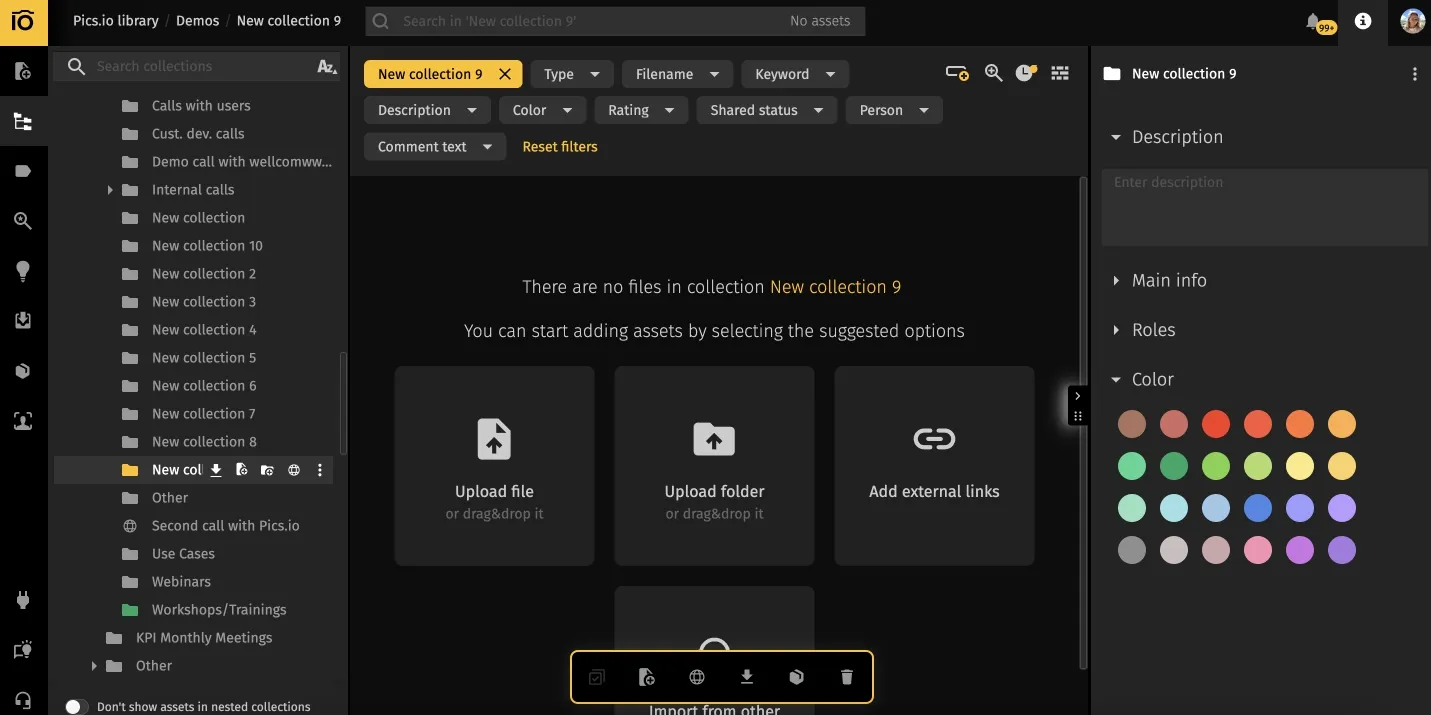
- Growing teams + marketing workflows add pressure: more contributors, more channels, more formats, more deadlines. The system has to work even when people are busy and even when they didn’t upload the file themselves.
How to Organize Digital Photos?
In practice, that means one source of truth, a minimal folder backbone, and metadata for findability and modern search.
1. Centralized storage: one single source of truth
If your photos live in five places, your team will behave like they live in five different realities. One person edits a file from Dropbox while someone else grabs an older copy from Google Drive. A “final” sits on a local desktop while the shared folder has “final_v2.” The result is predictable: duplicates, missing context, and a constant stream of “can you resend that file?”
A single source of truth doesn’t mean “only cloud” or “only local.” It means one place everyone trusts as the official library.
The best way to store photos is the setup your team will actually use every day—and trust as the official source. Whether that’s Drive, Dropbox, NAS, or a hybrid, the key is consistency: one primary home, not five.
Cloud storage like Google Drive or Dropbox is convenient: everyone has access, sharing is easy, links work. It’s also the place where duplicates breed if you don’t set a few rules — two people upload the same shoot, someone edits a copy, and suddenly the team is arguing which file is the real one.
External drives are the opposite: fast and tidy for one person. For a team, they’re a single point of failure. The moment the drive becomes “the only copy,” collaboration turns into “send me that folder again.”
That’s why most teams land on a hybrid: one central place everyone uses daily, plus a backup that runs quietly in the background (NAS + cloud, or cloud + synced backup). You get speed and safety without juggling five “homes.”
2. Smart folder structure: minimal, but usable
Folders still help — just not as the whole strategy. Think of them as signposts: they should make it obvious where new files go, and where people can browse when they don’t know the filename.
A simple structure that works in real life is four top-level folders:
- Inbox — new uploads (no sorting perfection required)
- Working — drafts, edits, “in progress”
- Library — approved assets people can safely use
- Archive — outdated, replaced, old versions
Inside Library, keep it broad: Brand, Products, Campaigns, Events. If the structure needs 6–8 nested levels to “make sense,” it’s already too hard to follow.
Don’t overdo nesting. If you need more than 2–3 levels deep, you’re probably trying to force folders to do metadata’s job.
Version control starts with one rule: stop creating “final_final_v7.jpg” in random places. Keep versions together in one spot (or one record), make the status explicit—Draft, Review, Approved—and once something is approved, treat the Library as the place people should use by default.
Folders can support this, but they’re not great at enforcing it—especially once multiple people contribute.
3. Metadata over folders
Folders help you store, and metadata helps you find.
Folders force a photo into one “home.” Metadata lets the same photo be found by many paths—without duplicating it.
Why does metadata scale better than folders?
When you’re searching, you’re rarely thinking “Where did we put it?” You’re thinking “the product shot with the blue background,” “images approved for the EU launch,” “anything from that shoot with the new packaging,” or “photos we’re allowed to use in paid ads.”
Folders don’t answer those questions well. Metadata does.
4. Modern approach to sorting photo assets
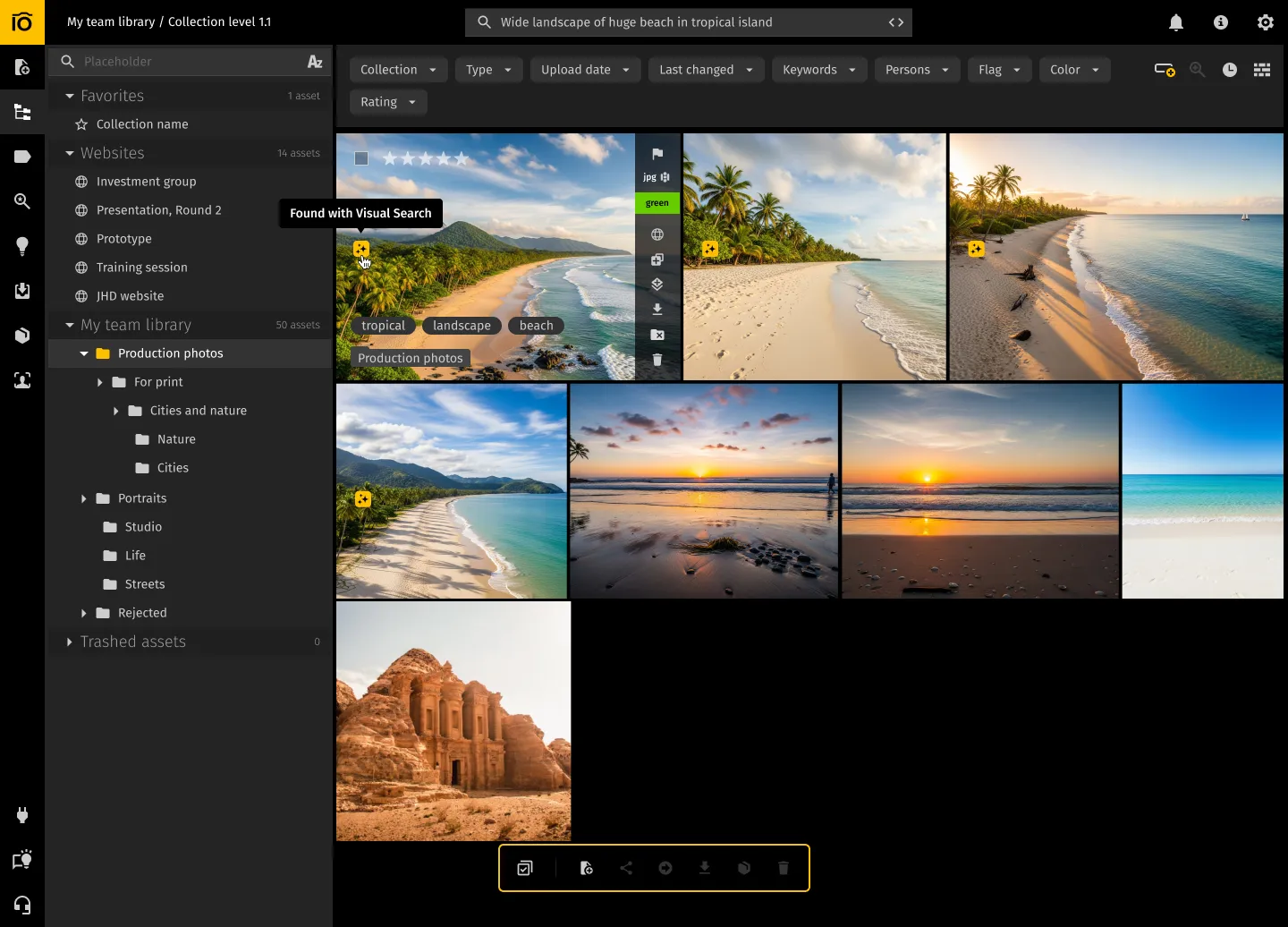
Modern photo organization starts with content-based search: find images by what’s inside the photo.
In Pics.io, we built AI Visual Search so teams can find images by content — similar visuals, objects, logos, and backgrounds — even when filenames don’t match. That typically saves hours, because search works without obsessing over manual tagging.
AI search takes pressure off the team because discovery doesn’t depend on perfect filenames and tagging.
Organizing Photos for Different Use Cases
One photo library can serve very different jobs. The trick is to decide what “good” means for your team: fast delivery, clean collaboration, rights safety, or long-term reuse. Below are a few setups that stay simple and still work when the archive gets big.
For photographers
Photographers usually need one thing above all: clarity between source and deliverable. A clean pattern is client → project, then four predictable buckets: RAW, Selects, Edits, Finals/Delivery.
That way you never wonder what’s still in progress and what can be sent out. Add two habits early: batch renaming (so files make sense outside your camera roll) and basic IPTC/copyright fields. Your archive stays usable even when Lightroom isn’t.
For marketing teams and SaaS companies
Marketing photos get reused, resized, re-approved, and recycled across channels. So the main risk isn’t “storage.” It’s someone grabbing the wrong version.
A simple setup that works:
- keep an Approved library (the stuff people can safely use)
- keep Work-in-progress separate (drafts, experiments, “maybe” assets)
Then make versions obvious: what’s approved, what changed, and what’s outdated. No one wants to guess if the product shot is the new packaging or last quarter’s.
For findability, folders won’t carry this alone. A few fields usually cover 90% of real searches: campaign/launch, channel, region/language, product/SKU, status, usage rights + expiry, owner.
And one more thing that saves teams from accidents: permissions. Not everyone needs “share externally,” and partners should see curated collections — not your whole workspace.
Manual Organization vs. AI-Based Organization
Manual organization depends on perfect discipline. AI-based organization is more forgiving because it lets people search by what’s in the image (objects, scenes, visual similarity) instead of relying on perfect filenames and tags. In 2026, the most practical approach is usually hybrid: simple structure, minimal “human truth” metadata (rights and status), and search doing the heavy lifting for discovery.
Common Mistakes When Organizing Photos
Even good teams fall into these traps—mainly because they copy “personal photo” advice into professional workflows.
Overcomplicated folder trees
If your structure goes 6–8 levels deep, it’s a maze. People stop following it, start creating "misc." folders, and duplicates explode. Keep folders shallow and use metadata for the “multi-dimensional” stuff.
Ignoring metadata
Without metadata, search becomes guesswork: you can’t reliably tell what’s approved, what’s safe to use (rights and expiration), or what belongs to a specific campaign or product line.
No naming standard
A library with IMG_4827.jpg, final.png, and new-new-banner-2.jpg is basically unsearchable outside of thumbnails. A simple naming pattern makes assets usable across tools, exports, and external sharing.
No backup strategy
A folder tree won’t protect you from drive failure, accidental deletion, overwrites, or local-only edits that never made it to a shared location—so backup and version history have to be part of the system.
Relying only on storage providers
Google Drive, Dropbox—these are great for keeping files. They’re not designed to manage approvals, version history, rights, and controlled sharing the way a real asset system does.
Mini note: How visual search changes the game
Here’s the twist: visual search reduces how strict you need to be with the “rules.”
Even when someone uploads to the wrong folder, skips tags, or names a file badly, visual search can still surface the right asset by describing the scene.
Final Thoughts
When the library grows, people stop asking “Where is it?” and start asking “Which one is approved?” Make that answer obvious: one trusted library, drafts separate, status and rights on every asset. After that, finding files should be a search problem — and visual search helps a lot.
FAQ
What’s the best folder structure for photos in 2026?
The best folder structure is minimal and predictable, not detailed. It should separate new uploads, in-progress work, etc. so people don’t mix drafts with finals. If your folders need more than a couple of levels to “make sense,” that’s usually a sign you’re trying to force folders to do the job of metadata and search.
Are tags and metadata really necessary, or are folders enough?
The moment you search by meaning—like “approved,” “EU launch,” “white background product shot,” or “safe for paid ads”—folders become guesswork, and people start resaving files in new places. Metadata keeps one asset findable from many angles without creating more copies.
Can AI/visual search replace manual sorting and tagging?
It can reduce the need for strict manual discipline because you can search by what’s in the image, not what someone remembered to name it. That said, teams still need a few “human truth” fields that AI can’t reliably guess, like usage rights, approval status, and campaign context. The strongest setup is simple structure plus minimal metadata, with AI search doing the heavy lifting for discovery.
Did you enjoy this article? Give Pics.io a try — or book a demo with us, and we'll be happy to answer any of your questions.


