

In this article, you’ll learn:
If you're dealing with documents, the chances are good you have a large number of files stacking up in your computer, consuming both space and time as you search for the right one.
Whether you work in marketing, sales, communication or you simply use documents for personal purposes on a daily basis, you need an effective method to store, organize, and further access your PDF files in an easy way. This is where metadata can not only help but also significantly improve your daily workflow.
In this guide, we'll provide you with everything (literally) you need to know about PDF metadata. Discover why PDF metadata is important, how to view, edit, and remove it, and learn some extra tips to ensure your metadata management is efficient.
The Basics: What is PDF Metadata?
Alright, let's start from the beginning. What on earth is PDF metadata?
The term ‘metadata' literally means a set of data about data. In the case of PDF documents, metadata includes vital information about the PDF, such as the creation date, modification date, author, copyright information, subject, keywords, and more. This information is called PDF metadata components.
Why Do You Need PDF Metadata?
Now that we've laid the groundwork, let's delve into why metadata is such a necessary element of your PDF files.
Gain Information About File
As mentioned, metadata allows you to access all the details about your PDF file. Was the PDF created after the deadline? Was the assigned person the one who created the file? Metadata answers all these questions.
Easy Finding
E-books, contracts, presentations – your computer may store tens of hundreds of documents (which, of course, are all too important to delete). If you fail to name them properly, we bet you won't find the right one in hours (or even days!) However, with PDF metadata, you can effortlessly locate the file by keywords, date, or even by author.
Boosting Searchability
In addition to simply providing information about a certain PDF file, metadata is crucial for enhancing searchability, especially when documents are published on the web. Businesses often publish e-books, reports, white papers, and other forms of documents in PDF, and metadata plays a key role in making these documents easily discoverable by search engines (like Google or Bing) and further searchable by a greater number of users.
Organizing Your Digital Library
Even with the best folder structure, you may still forget where you placed it. With that said, PDF metadata allows you to easily manage your content by certain filters, such as date of creation, date of modification, author's name, keywords, and subject. These filters provide a structured way to organize and store your files.
Improving Collaboration
If you're working on a project with your team, metadata helps in collaboration by providing essential details about a PDF. For instance, when working on a project with your team, metadata helps colleagues understand, locate, and work with the document more effectively. It ensures that everyone has the necessary information about the PDF file.
What Can You Do with PDF Metadata?
Now that you know the importance of PDF metadata, let's get to the most interesting part – its functionalities and how you can harness its potential to the fullest for effective document management.
Name PDF Files
How else would you to know what the PDF contains?
Some forget that the actual name of the PDF is also considered metadata. We recommend the following to maintain consistency when naming PDFs:
- Try to keep the file name short. As soon as the file name reaches 50 characters, it might be too long to notice the right information.
- If it requires a date, choose the yymmdd format for better accessibility.
- Don't include special symbols (@, #, $, [, <). Some operating systems or applications may not allow special characters. If you keep them in one document but fail to include in the others, your whole organization system will fall like dominoes.
View PDF Metadata
Most PDF metadata can be accessed directly from your folder. Here's how you can do it:
1) Right-click on the PDF and choose “Get Info” for IOS or “Properties” for Windows).
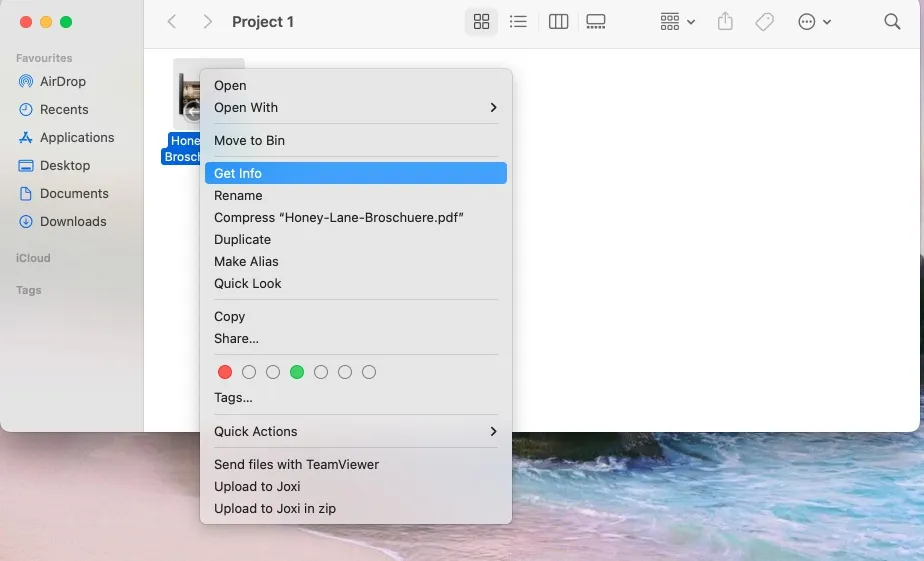
2) A new window will appear with the document properties and available metadata. Usually, you will be able to see the date created, date modified, author, and other details.
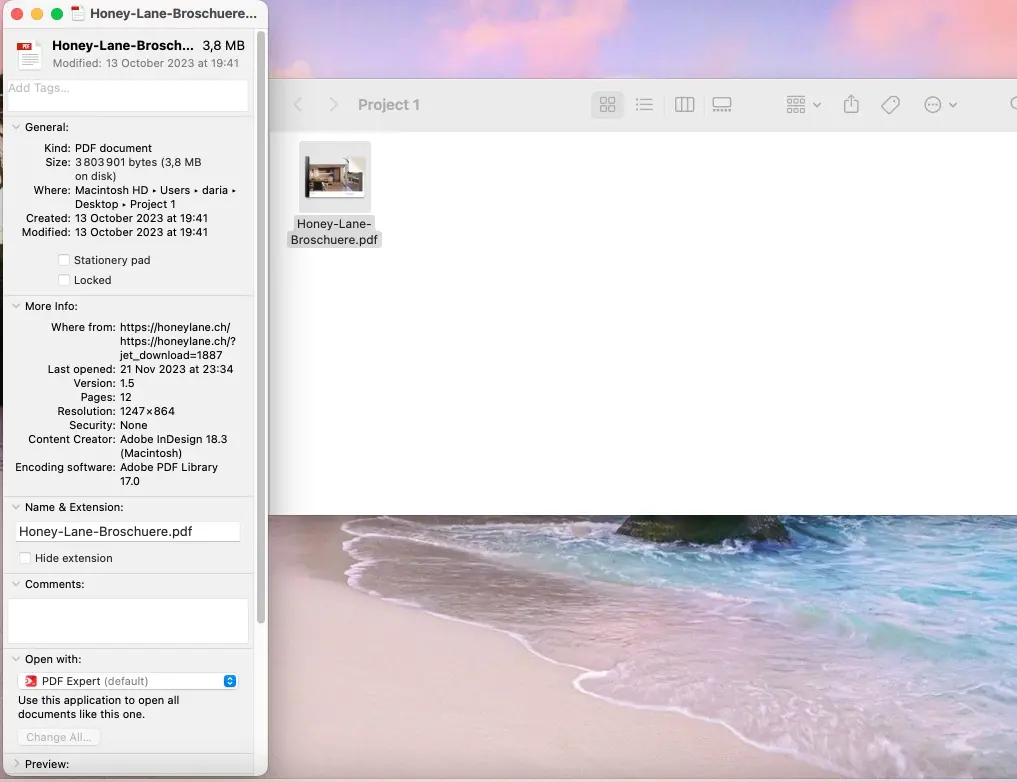
However, such a method may not always show all the information you require. For instance, you won't be able to see keywords or subjects. In this case, you could use a PDF viewer, or, if your goal is to quickly understand, analyze, or extract information from a document, tools like ChatPDF can help you interact with PDF content conversationally, making it easier to navigate long or complex files without manually scanning every page.
The most popular PDF viewers are:
- Adobe Acrobat
Adobe Acrobat is one of the most popular readers available for both Windows & macOS users. Here's a quick instruction to access your PDF file using this software:
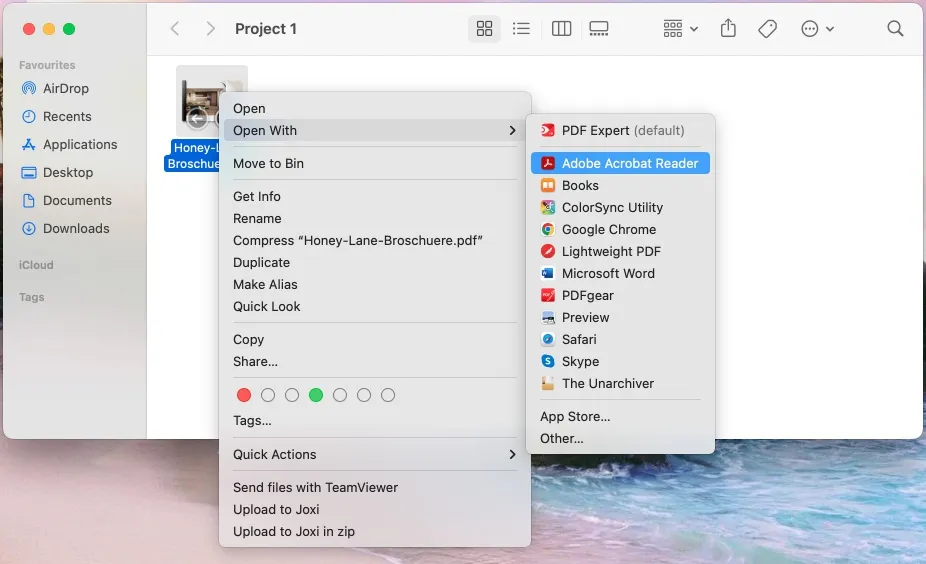
1) Open your PDF file in Adobe Acrobat. For this, right-click on the file, choose “Open With” and select Adobe Acrobat.
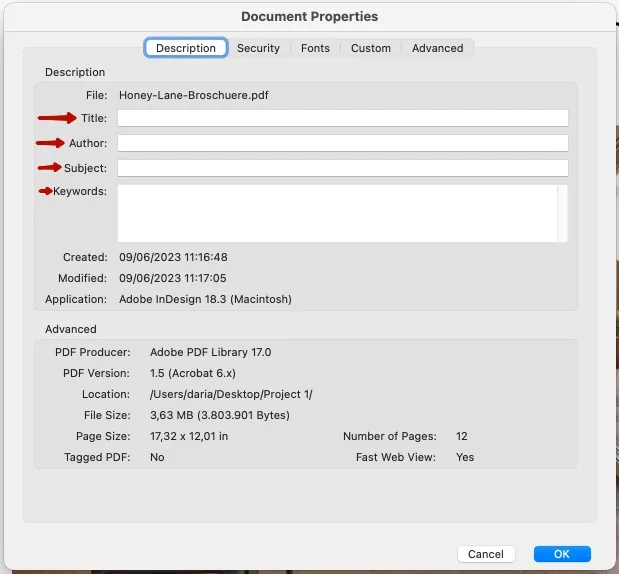
2) Once the PDF is opened, choose “File” in the upper left corner and look for an option called “Document Properties”.
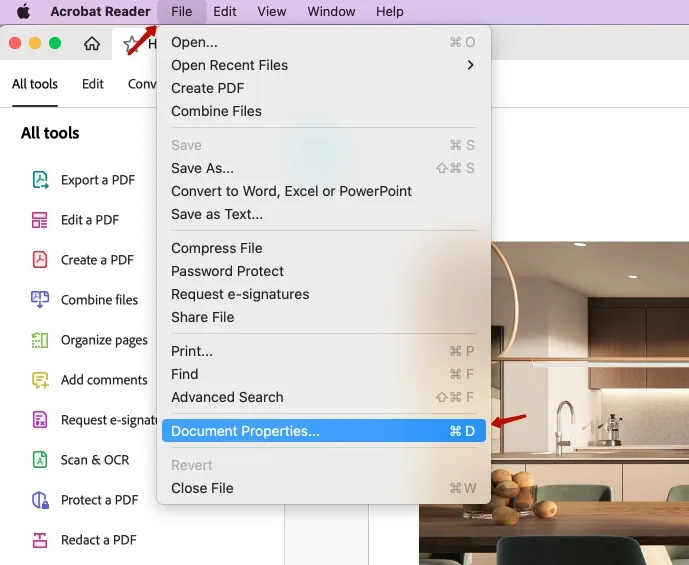
3) A new window with Document Properties will appear, where you will see all metadata available for this PDF. It includes Description (author, subject, keywords, creation date, modification date), Security (document restriction summary), Fonts, Custom properties, and Advanced metadata (number of pages, the page size, whether the document is tagged).
If you don't want the extra hassle of downloading additional apps to view the metadata, Pics.io is an online alternative that allows you to quickly access and further manage your metadata.
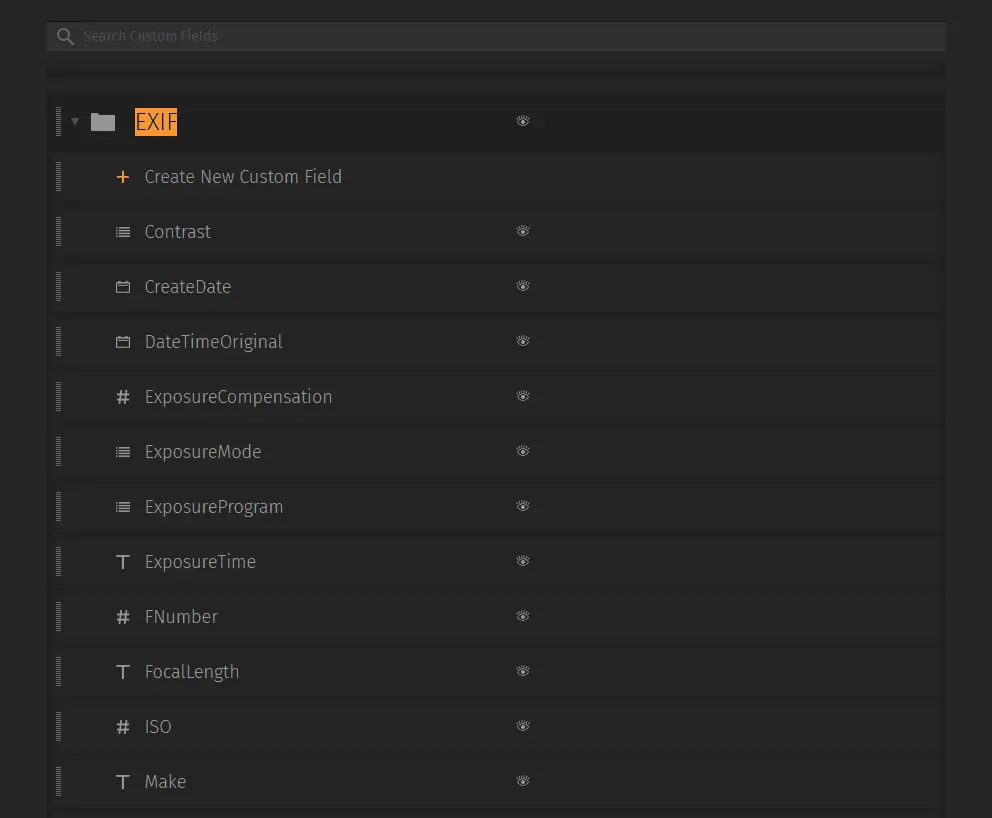
You can also decide what metadata fields will be shown in the Info panel next to the PDF in Pics.io DAM for your convenience. For instance, you can choose to show all EXIF metadata in Custom Fields section in your profile.
Add/Edit PDF Metadata
All modern PDF viewers will allow you to edit or add metadata, including document title, subject, author, description, and keywords. However, you cannot modify the creation date or the modification date.
Here's a general guide to add/edit your PDF:
- Open your PDF file in the PDF viewer of your choice (let's take Adobe Acrobat as an example).
- Look for an option called “Document Properties” (exactly as described in the previous block).
- A new window will open, where you'll be able to choose the field you want to add information to or modify and make the necessary changes (title, author, subject, keywords).
- Don't forget to save the document to update the file with new metadata.
… And it's as simple as that!
What Should Your PDF Metadata Include?
- Title
The Title (not the same as the file name) should reflect the main topic or purpose, making it easy for users to understand at a glance.
Don't create overcomplicated, cryptic Titles with editors' initials, dates, versions, and all other information that isn't informative enough. Instead, use descriptive Titles that provide insight into the content or purpose of the document.
- Author
Include the name of the document's primary author. For collaborative efforts, list all contributors or the team responsible. Consistency in author attribution helps establish credibility and accountability.
- Subject
Use keywords that actually match what’s inside the PDF. Not “nice sounding” keywords — the ones people will type when they’re trying to find this file three months from now. A couple of broad terms help (so the document shows up in wider searches), and a couple of specific ones help (so it’s easy to narrow down). If it’s unclear what to add, steal from the title and the main topic. That’s usually the most honest starting point.
- Keywords
Choose keywords wisely, considering terms that users might use when searching for the document. Include both general and specific keywords to broaden the document's discoverability. If you don't know which keywords to add, consider the ones from the title or subject.
- Language
For accessibility, you need to set the language from the list of ISO 639-1 language standards (two-letter language codes). This is mostly necessary so that when assistive technology is used to open your PDF, it interprets and presents the content in the language stated in the metadata.
Remove PDF Metadata
Of course, there might be instances where you might want to remove the metadata you no longer need. You can do so the same way you previously added or modified the information. But what shall you do if you want to delete all PDF metadata at once?
Some PDF viewers offer a great option to clear all metadata at once. Look for a button or checkbox that allows you to remove all metadata from the document.
Once changes are made, save the PDF. Some viewers look like they apply metadata edits automatically, but it’s not always consistent. It takes two seconds to reopen the file properties and confirm the edits didn’t vanish.
One caution though: removing metadata is useful when a file is going outside the team, but wiping everything isn’t always the smartest default. Metadata is also how documents stay manageable internally — ownership, context, version history, keywords for search. The goal is to remove what’s risky or irrelevant, not to erase anything that could help later.
Transfer Metadata
If the metadata exists in your PDF, you don't need to worry about transferring it manually. As soon as you send or receive the file, the metadata will be sent automatically.
Store PDF Metadata
Storing metadata is basically creating a catalog entry for every PDF in the library. It doesn’t change what’s on the pages, but it makes the file understandable and searchable across tools. Under the hood, PDF metadata follows specific standards (often XML-based), which is why different apps can read it and keep it intact when files move between systems.
Challenges of PDF Metadata Management
The hard part starts when there are no shared rules. Without basic standards, metadata becomes random: different naming styles, inconsistent keywords, missing authors, outdated fields that never get updated. Search turns unreliable, and the “library” starts behaving like a junk drawer.
Inconsistency and Limited Standardization
When different contributors use various naming styles, this can hinder the uniform organization of documents and easily lead to confusion in further management.
Control Issues
Versions make it worse. Every time a PDF gets revised, metadata can drift — wrong dates, old titles, “final” files with the metadata from an earlier draft. Keeping it clean takes a little discipline.
Security Concerns
And then there’s security. Metadata can quietly include things nobody intended to share: internal names, edit timelines, tools used, or other details that make sense inside a company but shouldn’t travel with a file sent to a client.
But is there a way to juggle all these problems? Let's take a look in the next section.
How to Improve Your PDF Metadata Management
Now, here's where the interesting part comes. Let's see how you can improve your PDF metadata management:
Establish Metadata Standards
Keep it simple: agree on a basic standard (how titles and keywords are written, what gets filled in, what gets removed for external sharing), and do occasional cleanups. Not an endless process — just a periodic check so small inconsistencies don’t turn into a system-wide mess.
Perform Regular Audits and Maintenance
Periodically reviewing and auditing your metadata to identify inconsistencies or outdated information is a must. To make sure that your metadata remains accurate and aligns with organizational needs, we recommend performing regular maintenance (at least once in a couple of months).
Explore Digital Asset Management (DAM) Tools
If PDFs are multiplying and folders are starting to crack under the weight, that’s usually the moment a DAM becomes worth considering. Storage alone doesn’t solve the “find the right file fast” problem. A DAM adds structure: consistent metadata, permissions, version handling, and a search experience that doesn’t depend on everyone tagging things perfectly.
Conclusion
In short: metadata isn’t just technical trivia. It’s what makes a PDF library usable. And when it’s unmanaged, it’s also one of the easiest ways to overshare without realizing it.
Centralized libraries will not only protect but also store hundreds of your files in a convenient way, elevating your document management.
Did you enjoy this article? Give Pics.io a try — or book a demo with us, and we'll be happy to answer any of your questions.


